


No manual work required after setup. DDD Invoices Stripe plugin allows businesses to comply e-invoicing & fiscalization requirements when invoicing or receiving payments with Stripe.
The Stripe plugin is available for install here.
Short introduction of the Stripe plugin:
How the plugin works:
- The plugin receives an invoice trigger with transaction data (usually after successful payment notification; invoice status must be "paid" in Stripe)
- Creates a local e-invoice XML (and delivers it to the local tax portal) or it fiscalizes the transaction
- can also generate a PDF with a QR code
- delivers it to the receiver of the invoice via email
We are currently onboarding businesses from Slovenia, Croatia, Romania, Italy, Montenegro, Serbia, Germany, all countries for PEPPOL e-invoicing etc. and soon also Greece, Hungary and other nations!
Before you start: Step-by-step guide overview
You will complete setup across two systems:
• Stripe (where invoices and tax settings are created)
• DDD Dashboard (where company, compliance, and delivery channels are configured)
What you need before you start:
- 30 minutes of your time
- Active Stripe account (in the live environment)
- certificate/API key for e-invoices/fiscalization in order to do authentication with the tax authority (this depends of your country requirements; see delivery channels under Step 3 for more info)
Setup overview: 4 steps to make your Stripe transactions compliant:
1. Install the Plugin in Stripe
2. Verify Your Tax Settings in Stripe
3. Set-up company & delivery channels in DDD Dashboard
4. Choose a payment package & switch to production!
Before you start the Stripe setup, check if there are any country-specific requirements for the country you want to invoice in.
Different countries may require different customer data, product data, VAT codes, workflow steps, or delivery channel settings.
Open the DDD Invoices Setup Library to check:
- what data must be added in Stripe
- how invoices should be processed for your country
- where invoices should be sent, such as Peppol, tax portals, or fiscalization systems
- what local tax or invoicing terms mean
This helps you avoid missing-data and setup errors before creating your first test invoice.
Full step-by-step video guide for set-up:
Prefer video?
Watch full setup walkthrough (20 min)
STEP 1: Install the Plugin in Stripe
📍 Location: Stripe
Head to Stripe Marketplace or click this link to install the DDD Invoices plugin (you need a Stripe account): https:/
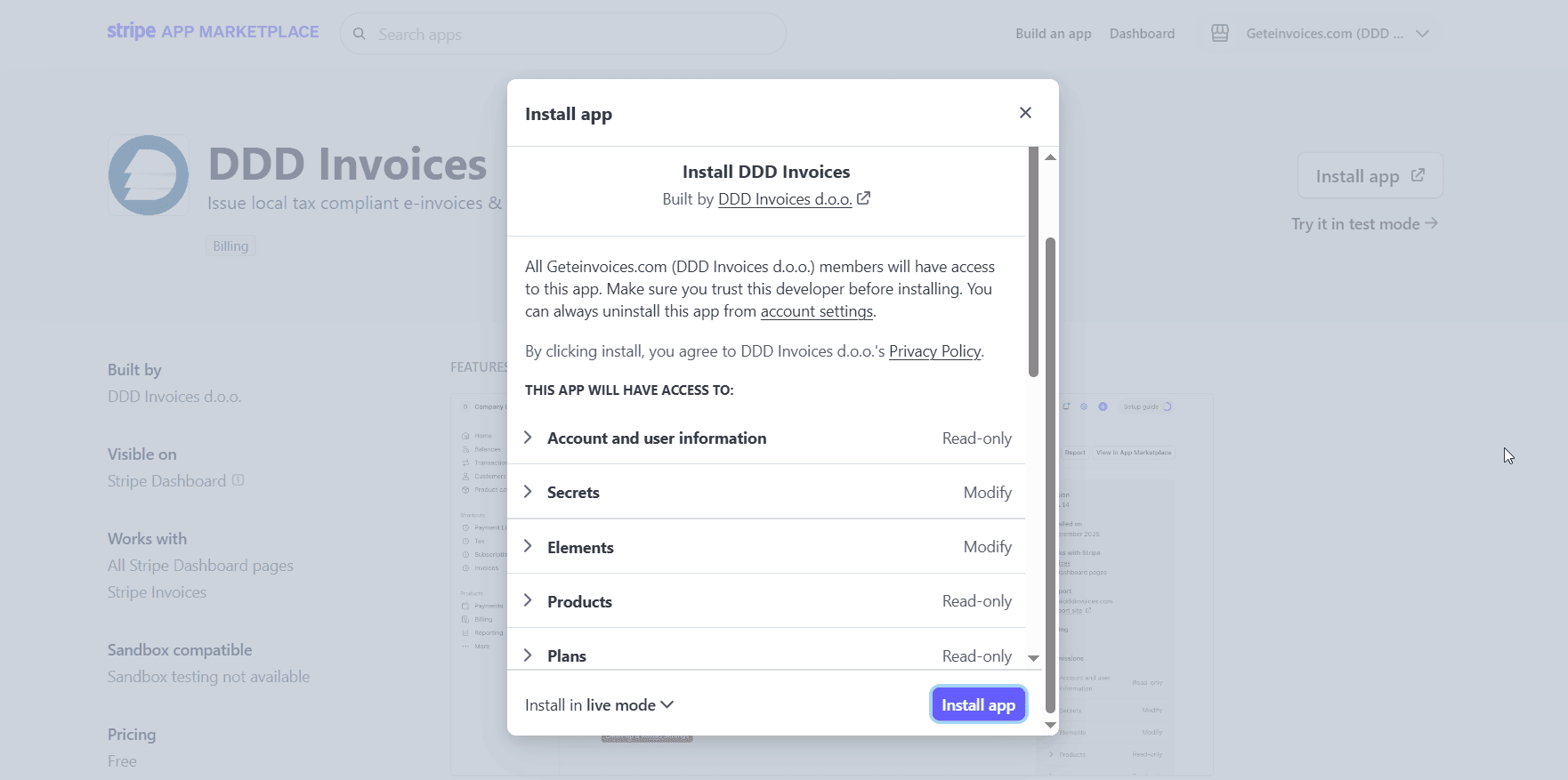
1/4: Open Stripe and click on the DDD Invoices plugin
.png&w=1920&q=75)
2/4: Insert you email and tax number and click Sign-In:
.png&w=2560&q=75)
3/4: Open Settings of the DDD plugin inside Stripe.
.png&w=1920&q=75)
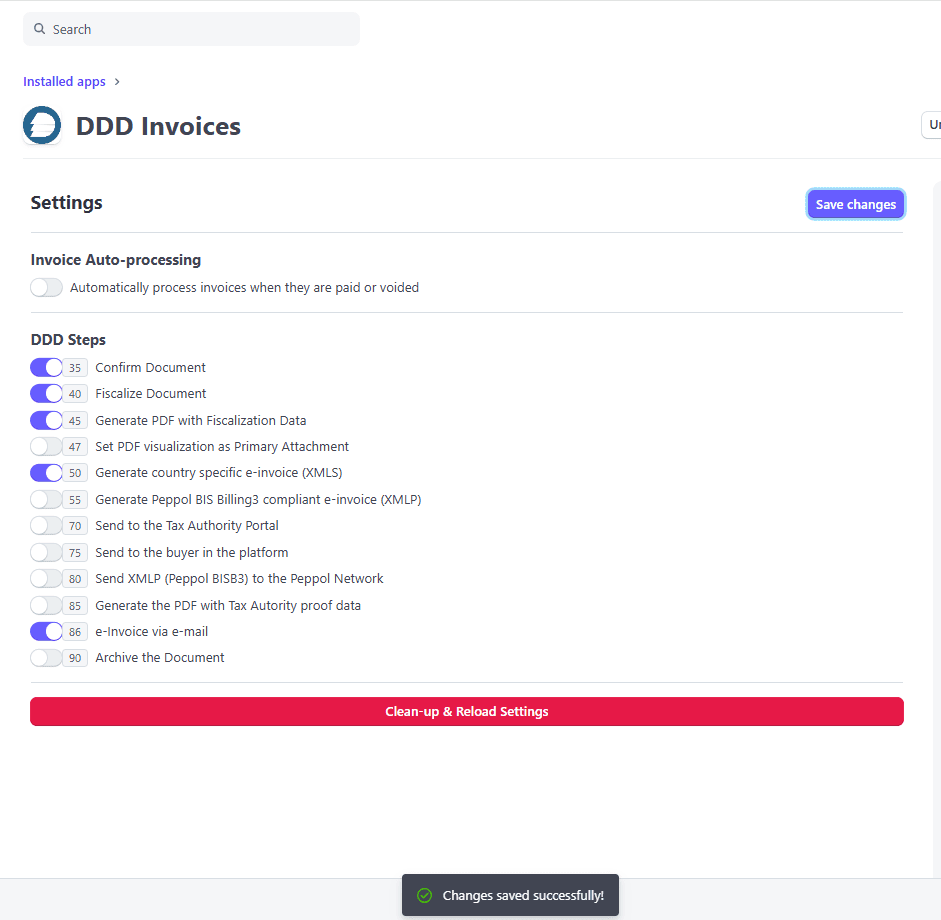
4/4: Turn ON “Auto-processing of invoices” so every invoice/transaction/subscription is automatically sent to DDD Invoices.
.png&w=1920&q=75)
Extra step: Set up the workflow that you need for your use-case and country. Below is a video explainer of the steps you might need.
.png&w=1920&q=75)
Video explainer for workflow for DDD steps and documentation help.
Not sure which workflow steps you need?
Check the country workflow section in the DDD Invoices Setup Library before saving your workflow settings.
Click SAVE (and watch for black confirmation box on the bottom)!
STEP 2: Verify Your Tax Settings in Stripe
Before DDD can generate compliant invoices correctly, make sure your tax setup in Stripe is complete.
You need to check 3 places in Stripe:
📍 Location: Stripe. Check all 3:
- Tax/Locations
- Settings/Tax
- Product catalogue/Tax rates
These settings determine what tax information appears on your invoices and whether Stripe Tax can calculate tax correctly.
If you are VAT registered, make sure your tax registration is added in Stripe. If you are not VAT registered, or you are tax exempt, you can set this up using custom VAT rates or exemptions, as explained below in the section Custom VAT rates.
Once this is set correctly, Stripe Tax can calculate and apply taxes automatically.
Some countries require additional customer, product, VAT, or metadata fields.
Before continuing, check the “Specific data points for countries” section in the DDD Invoices Setup Library.
1/3 Head to Stripe and write → Tax in the Stripe toolbar:

Click on Tax and go to Locations. Example:

Here, check:
- if your country is listed
- the registration is active
- the status says Collecting tax, if you should be charging VAT/tax there
In the Locations tab, you should confirm that your tax registration exists for the country where you issue invoices.
If you are already VAT/tax registered, your location should appear here with status Collecting tax.
If it is missing, click + Add registration and add your registration details.
Stripe uses this registration data to calculate and collect the taxes you are responsible for.
2/3 Write → Settings / Tax in the Stripe toolbar:

At the bottom, review how tax should be handled on your invoices and check that your tax setup matches the way you sell.
Then decide whether your prices should be treated as:
- Tax excluded - tax is added on top of the item price
- Tax included - tax is already included in the item price
.png&w=1920&q=75)
In most cases:
- for B2B, prices are typically set as tax excluded
- for B2C, prices are typically set as tax included
This affects how Stripe calculates and displays tax on invoices.
Example:
- Tax excluded: product price is 100 EUR, tax is added on top, total becomes 122 EUR
- Tax included: product price is 122 EUR, tax is already included in that amount
Make sure this matches your pricing model, otherwise invoice totals may appear differently than expected.
If you use different pricing logic for different products, customers, or countries, review your Stripe setup carefully and make sure the selected tax behavior reflects your actual sales flow.
3/3 Open Product catalogue in Stripe and check how tax is applied to your products or subscriptions.
Write → Product catalogue / Tax in the Stripe toolbar:
-1.png&w=1920&q=75)
Here, make sure that your products use the correct tax setup:
- If Stripe Tax is enabled, Stripe can calculate tax automatically based on your tax settings, customer location, and product tax code.
- If Stripe Tax is not enabled, you will need to add tax rates manually where relevant.
If Stripe shows “You’ve activated Stripe Tax”, tax rates usually do not need to be created manually. In that case, make sure your tax settings and product setup are correct.
If you are using manual tax rates, confirm that the correct tax rate is added to the relevant product, subscription, or invoice flow.
This step is important because tax on invoices depends not only on your Stripe account settings, but also on how the specific product or subscription is configured.
If you do not use Stripe Tax, make sure the correct tax rates are added manually to the relevant products, subscriptions, or invoice flow.
This ensures the correct tax treatment appears on your invoices.
_____________________________________
Using 0% VAT?
E-invoicing & fiscalization requires a reason for tax exemption.
If you send invoice with rate 0% VAT from Stripe , we will put on the invoice the most general VAT exemption code available. As e-invoices require specific code for the VAT, you cannot simply insert a 0% VAT without a specified reason for exemption. For this reason, follow the Custom VAT rates guide bellow to specify what exemption code (and consequentally also exemption clause) you want on your invoices.
Custom VAT rates
Here we can set-up the meta-data for the product if you are for example VAT exempt, or have transactions who require exemption handling, and want to have extra VAT rates/clauses/codes not provided by Stripe. Here is a video about that.
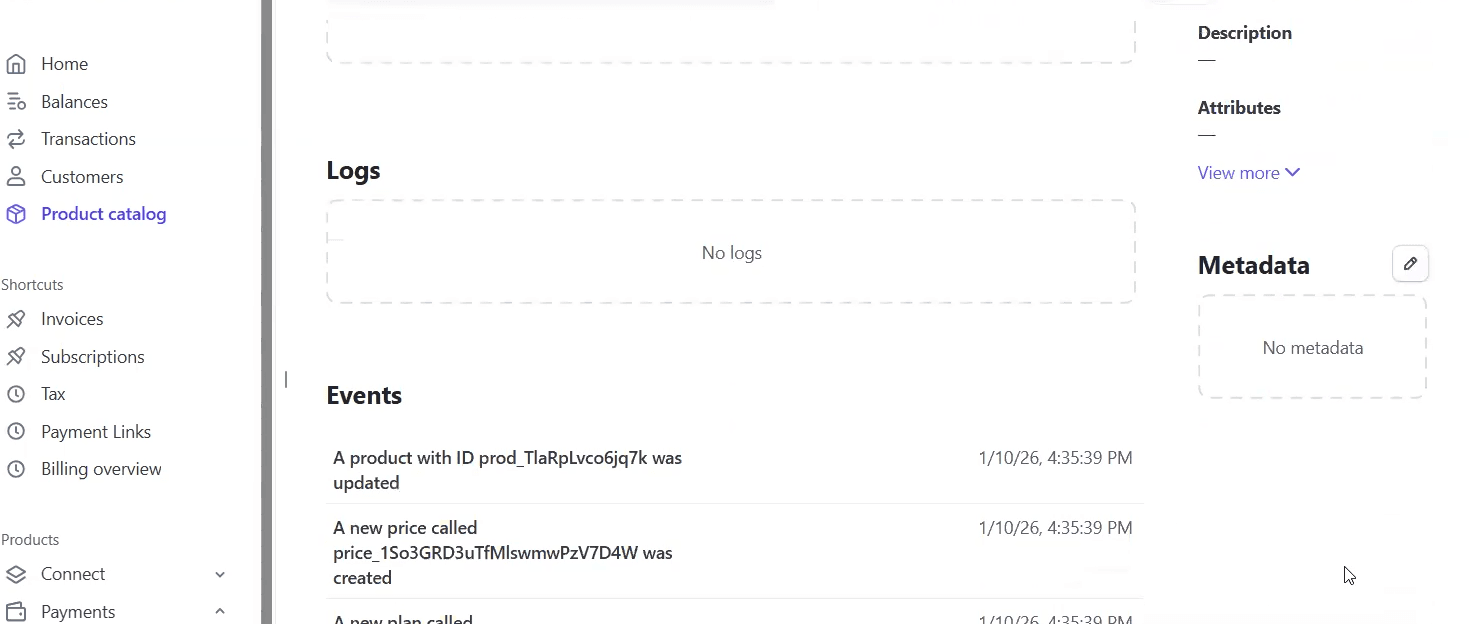
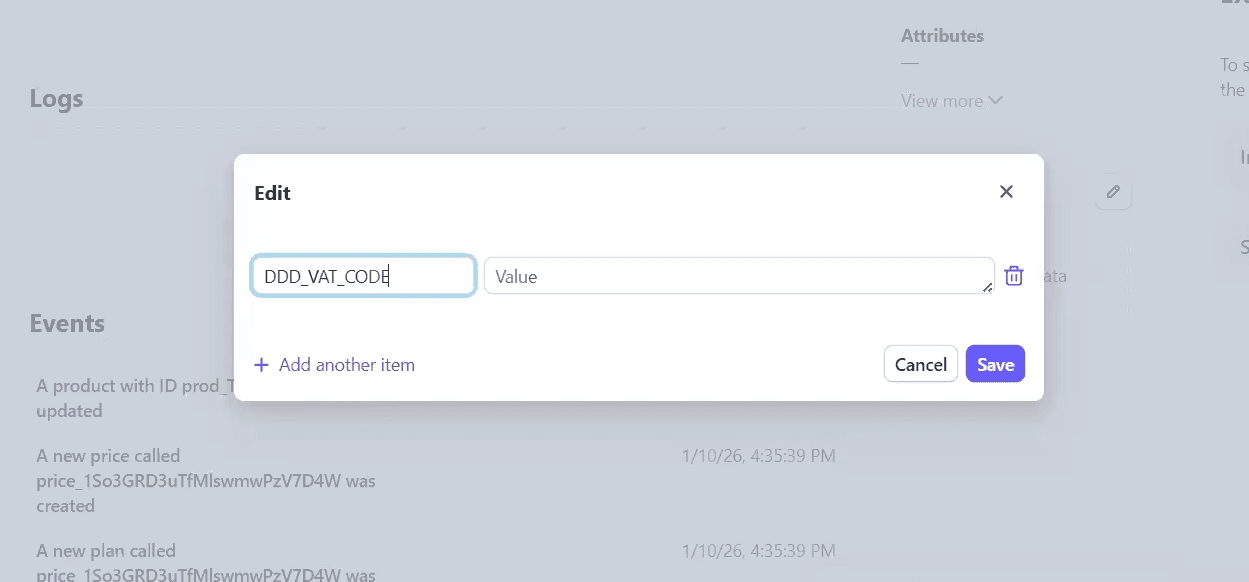
Example of meta data in Stripe:
Click on specific product -> Meta data on the right side (image below) -> Insert in the field key "DDD_VAT_CODE" and insert in the field value correct code found in on this link (second image below). Here is a video to help you with that.
Now, go to your DDD dashboard.
_____________________________________
STEP 3: Set-up company & delivery channels in DDD Dashboard
📍 Location: DDD Dashboard
What you will need: authentication credentials (certificates, API keys etc.) After this, DDD will be ready to process your invoices.
1/2 Click “Go to Dashboard” at the bottom of the DDD plugin in Stripe.
.png&w=1920&q=75)
In the DDD Invoices dashboard → click the person icon (top-right corner).
.png&w=1920&q=75)
Fill in all Company Details (most of this data is required to be visible on the invoice) and click SAVE!
For country-specific delivery channel instructions, open the “Delivery channel setup” section in the DDD Invoices Setup Library.
-1.png&w=1920&q=75)
2/2 In the DDD Dashboard on the left side, go to Settings → Delivery Channels.
Depending on the use-case and country you might need to set-up different Delivery Channels and insert authentication credentials (certificates, API keys etc.)
Click here for the guides for delivery channel set-up per country & use-case which will tell you how to obtain the authentication credentials.
-1.png&w=1920&q=75)
Result:
DDD is now ready to process your invoices.
Before booking, make sure your Stripe account is fully verified & set-up.
Optional step: Try sending invoices into the test environment of the tax authority
📍 Location: Stripe
Unlimited testing before going live: Test sending invoices from Stripe to the test tax authority portal and you’ll be using DDD’s test authentication with the tax portal. Important: Only paid invoices are sent to DDD.
1/4 Go to Stripe and click on Invoices Tab and try sending an invoice, subscription, payment link with a small amount!
-1.png&w=1920&q=75)
2/4 Click on one invoice to view the status of that specific invoice! In order for the invoice to get sent to our service the invoice in Stripe should have the status "paid".
-1.png&w=1920&q=75)
3/4 A successful test means that all Steps selected in the plugin Settings page were executed.
.png&w=1920&q=75)
4/4 See all your invoices:
📍 Location: DDD Invoices
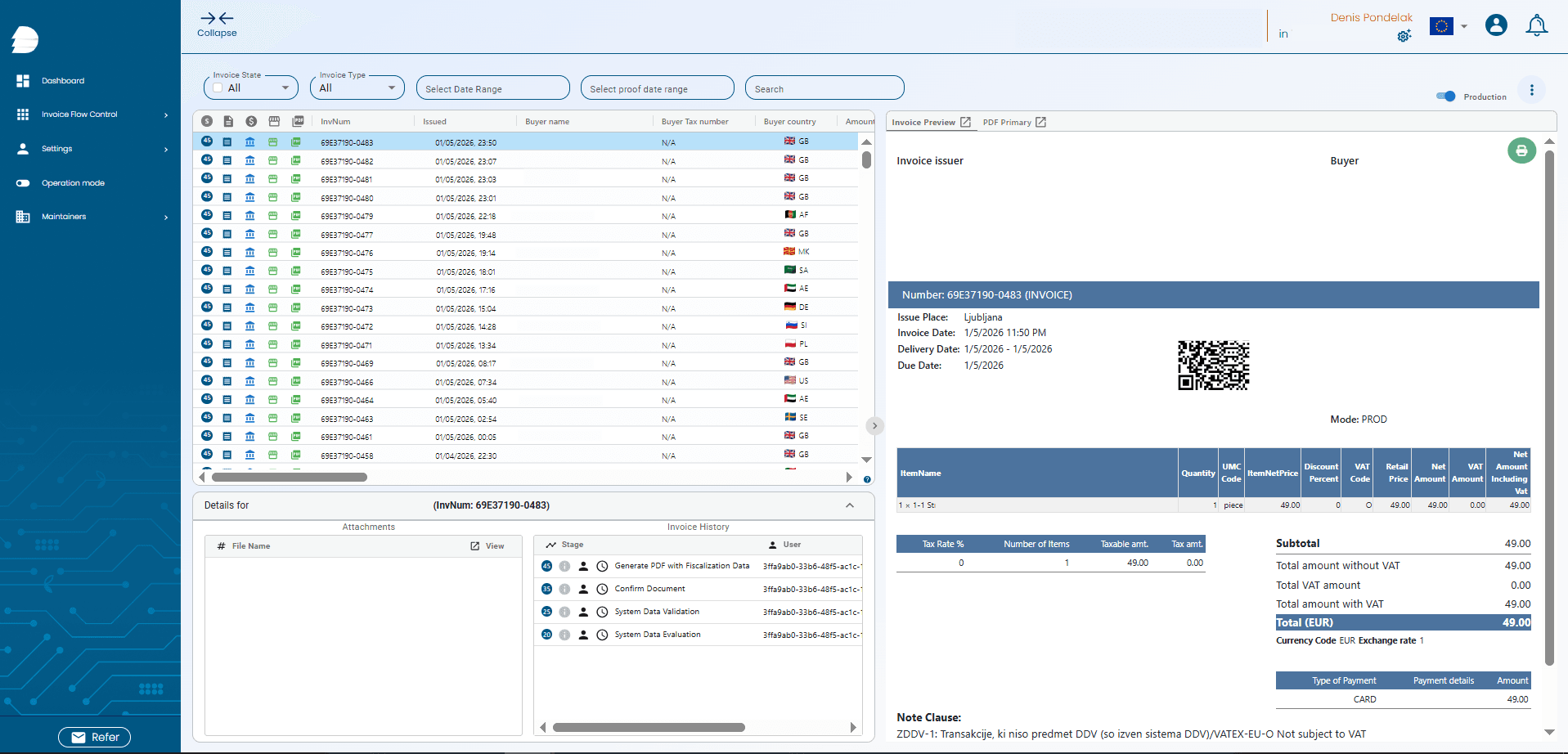
By going to the DDD Invoices dashboard on the LEFT sidebar menu is Invoice Flow Control → Issued Invoices you can see your whole invoice flow of all your invoices.
-1.png&w=1920&q=75)
Success! Your invoice has been validated and sent according to local compliance rules.
_____________________________________
STEP 4: Choose a payment package & switch to live / production mode!
1/4 In the right corner menu click on the "person" icon and click on Payments & Billing
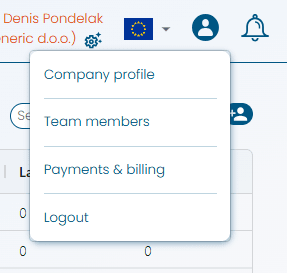
A payments and billing section will open, where you can see your uploaded credit amount, payment plans invoices and more.
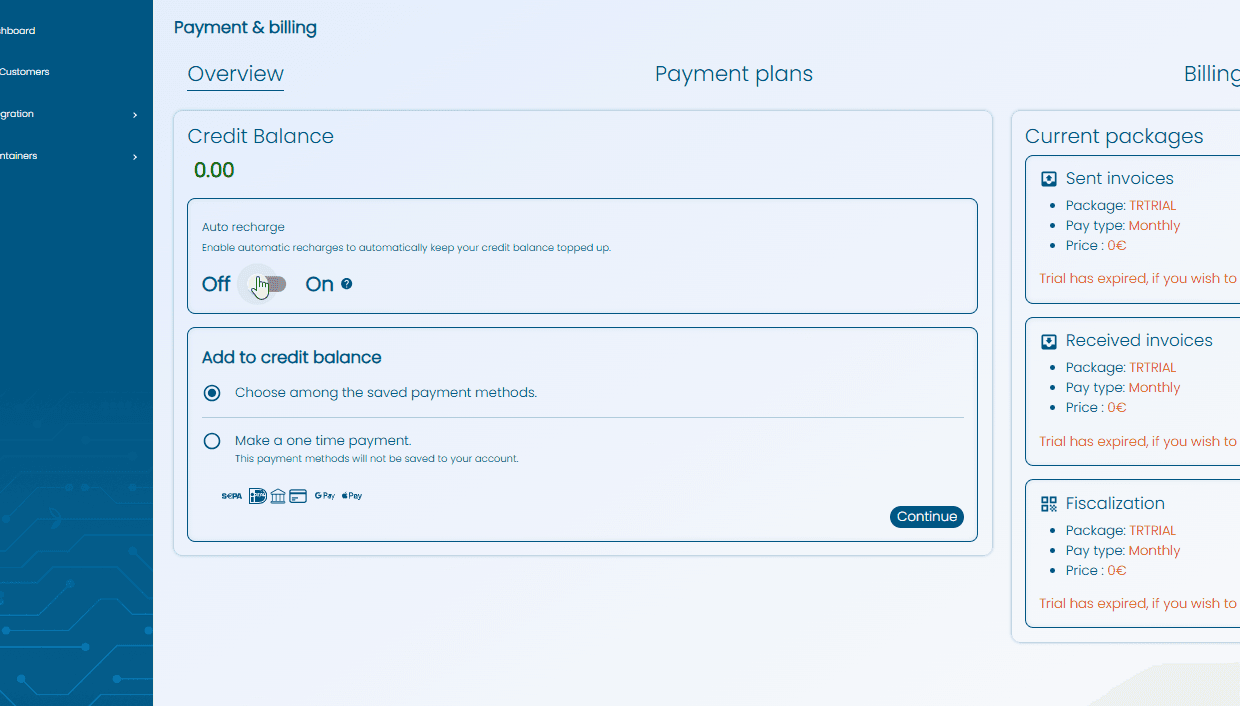
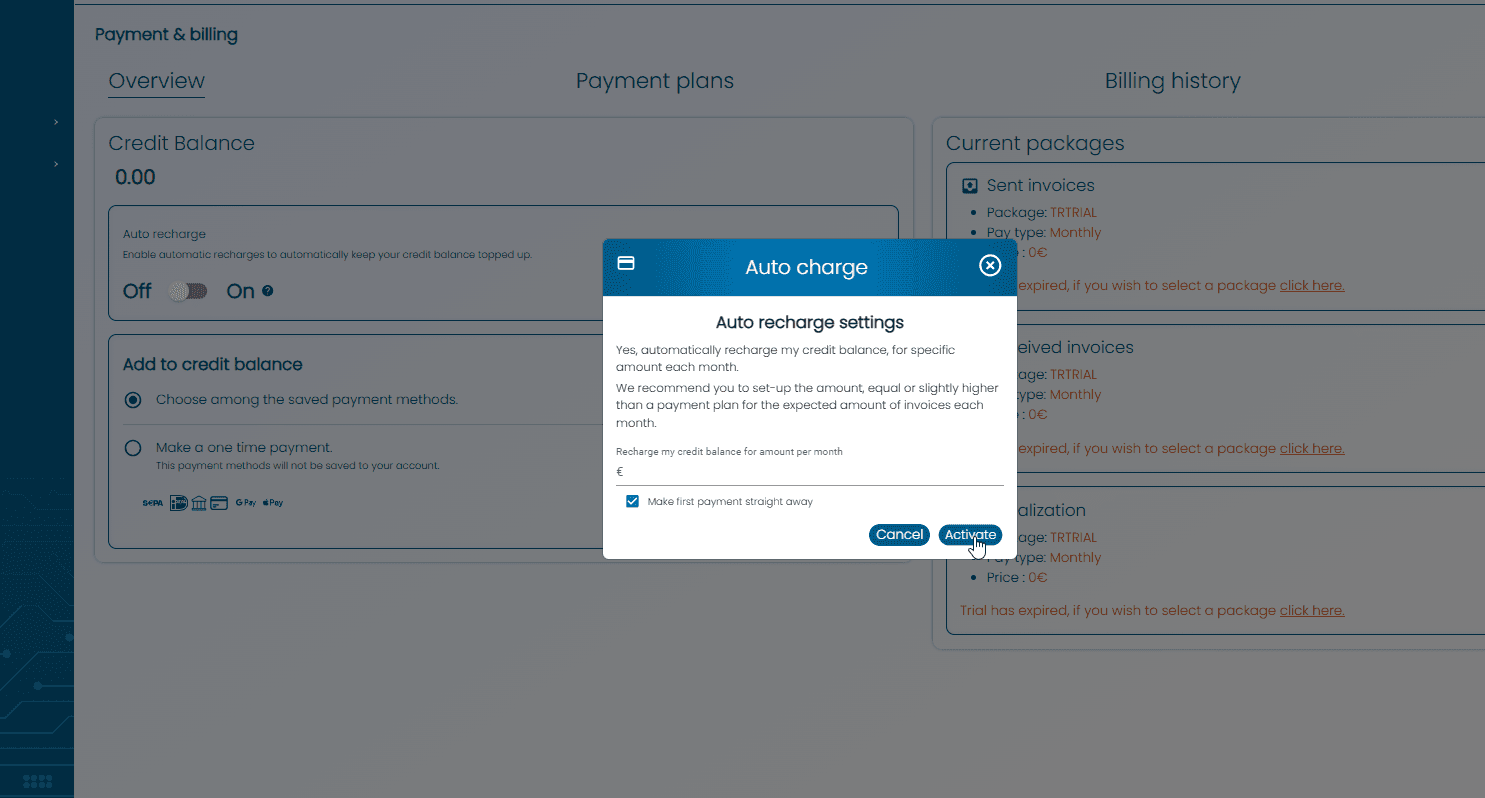
2/4 Click on the Auto-recharge option to always keep you account topped up and enter the amount that is the same or slightly higher then the package price, to account for invoices going over the limit.
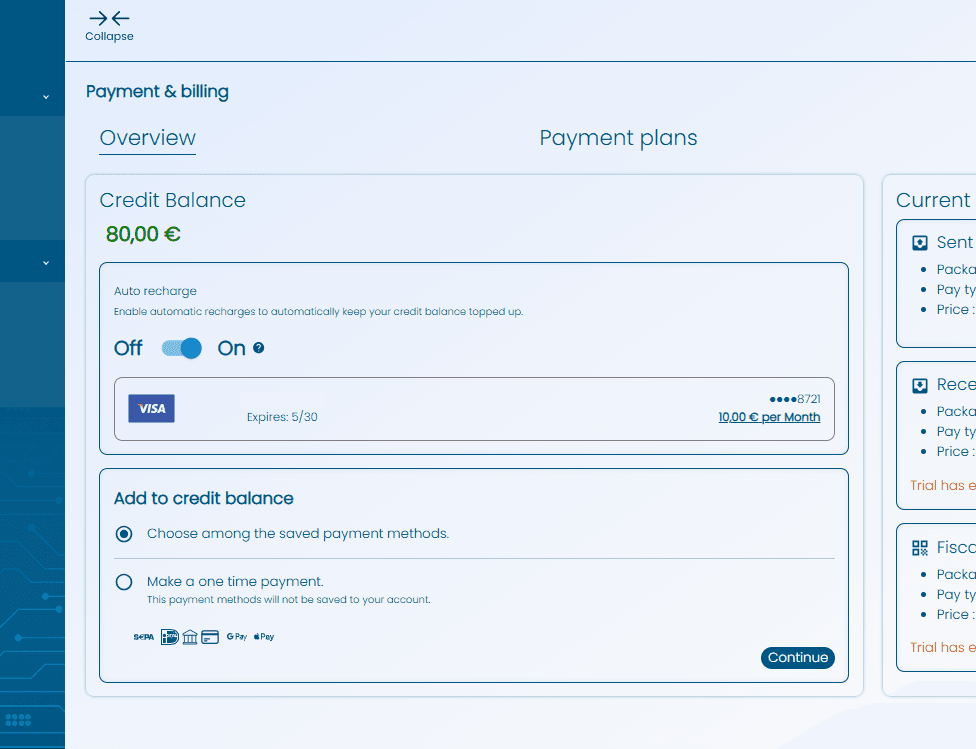
3/4 Complete the purchase and the card together with the payment plan should be saved in the dashboard.
4/4 In the DDD Dashboard and go to Live/Test Mode.

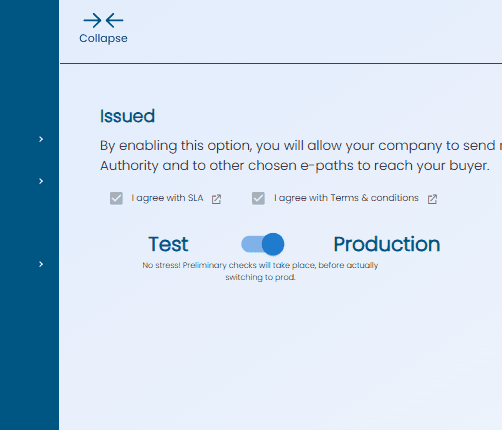
Turn Issued Invoices from Test → Live. (No stress, preliminary check will take place, but do this only when you are ready to start issuing invoices to the tax portal!)
-1.png&w=1920&q=75)
The toggle should switch to the production and that's it! You are done!
Congratulations!
DDD now runs automatically in the background. You can now start generating and distributing tax compliant documents via DDD Invoices from your Stripe transactions!
Once you collect a few, they should look like this in the DDD Invoices dashboard. Happy invoicing!
Before booking, make sure your Stripe account is fully verified & set-up.
_____________________________________
What clients say
FAQ
- What is Stripe?
Stripe allows businesses to accept online payments from customers - via credit cards, debit cards, digital wallets (like Apple Pay or Google Pay), and even bank transfers - all through a secure API or integration. - What does the DDD Invoices Stripe plugin do?
The plugin connects your DDD Invoices account with Stripe, allowing you to automatically sync invoices, payments, and customer data between both platforms. It streamlines billing and reduces manual data entry. - Do I have to install plugin for multiple Stripe accounts or legal entities?
One legal entity equals to one DDD Invoices plugin installation (because you are registering legal entity on DDD Invoices). You can use the same DDD Invoices account with multiple Stripe accounts, provided there is the same legal entity in the background. - How do I connect my Stripe account to DDD Invoices?
The Stripe plugin is available for install here. - Does the plugin automatically record and processes Stripe payments?
Yes, turn auto-processing on in Settings inside Stripe dashboard. in DDD Invoices plugin. - Can I use this plugin with all Stripe events (invoicing, payment link, checkout, subscriptions etc.)?
It works on all, that will trigger the "invoice" event. For most this is done automatically, however for invoice after one time payment your can do this via Checkout Session API or via Payment Link and for this your for turn on "Post-Payment Invoice" (in each payment link). - How do I issue refunds?
Refund the payment/transaction via Stripe first and then via plugin in right passage inside the Stripe, manually storno/void the transactions/invoice to the tax authority. (Note: you need to have activated at least Step 45.) - What currencies are supported?
The plugin supports all currencies available in your Stripe account. When creating invoices in DDD Invoices, make sure to select a matching currency to ensure proper synchronization. - Is customer information shared between DDD Invoices and Stripe?
Yes, customer data such as name, email, and payment details are synced securely between platforms to ensure accurate billing records. - How do I disconnect DDD Invoices plugin from Stripe?
You can disconnect your DDD Invoices account anytime by uninstalling it from Stripe. Once disconnected, syncing will stop, but your past records will remain intact in DDD Invoices. Contact us for deletion of the data. - Is the DDD Invoices Stripe plugin secure?
Absolutely. The plugin uses Stripe’s OAuth and API security standards to ensure all data is transmitted and stored securely. DDD Invoices does not store sensitive payment information directly. - Will the customer receive the invoice with QR code/e-invoice by itself?
Yes, if you also choose Step 86 (send via email) in the workflow. You can then also turn off Stripe invoices that are send to your clients, so client does not receive two invoices. - Do you also send invoice via email to the end-client?
Yes, if you choose to Step 86! - How to add additional emails on which I want my invoices to be sent to? (e.g. to accountant)to help you with that.
- Can I also set other units or tax rates than what Stripe offers?
Yes, you should include them under the meta-data of the product in the Stripe dashboard.
Here is a video about that.
Insert "DDD_UMC_CODE" and insert a unit from the list here:
Value set:
year (leto)
kW (kW)
kWh (kWh)
day (d)
kg (kg)
min (min)
t (t)
piece (kom)
g (g)
hour (h)
km (km)
l (l)
m (m)
month (M)
m2 (m2)
m3 (m3)
NN (NN)
Item: Unit of measure code (standard units described in appendix)
Same for custom tax rates:
Click on specific product -> Meta data on the right side -> Insert in the field key "DDD_VAT_CODE" and insert in the field value correct code found in on this link (second image below). Here is a video to help you with that. - How does enumeration of invoices works?
Your Stripe invoice number will be the same as the invoice number in DDD Invoices.
For setting up the enumeration towards the government, you need to go into DDD Invoices dashboard under Delivery Channels and set-up and potential fiscalization/e-invoice enumeration towards government there. - Can I export my invoices from the system?
Yes, we offer comprehensive exporting options. See this video for more info. - Do you offer refunds?
All payments are final and non-refundable. Because DDD Invoices generates fiscally binding documents and triggers external compliance processes in real time, we can’t recerse usage once it happens. - Have additional locally specific tax related questions?
Try to find the answer among these Q&A. - Need help with setting up your Stripe settings or need support?
Book a session via this link here (and please tell specifically in which step you are experiencing a roadblock). Before booking, make sure your Stripe account is fully verified & set-up.
.webp&w=3840&q=75)
